
Easily Transition Away from GoDaddy for Microsoft 365 Email: A Small Business Guide

Fix GoDaddy Email Hosting Issues, iPhone Setup Issues Resolved, Deliverability, Spam Issues Fixed Are you a small business owner frustrated by the limitations of GoDaddy’s Microsoft 365 email? You’re not alone. Many users struggle with deliverability, spam, mobile access (especially on iPhones), and lack of full admin control. The good news: SyncraTec Solutions can help you transition away from GoDaddy for Microsoft 365 email. Break from GoDaddy’s restrictions—without the risk of migrating your email or losing any data. Break Free from GoDaddy for Microsoft 365 Common Complaints (SEO: GoDaddy email issues, iPhone setup, spam, deliverability) Deliverability & Spam Issues: Legitimate emails often land in spam folders, or important messages go missing. Mobile Access Problems: iPhone users report frequent sync failures and two-factor authentication glitches. Outlook/Microsoft 365 Integration Woes: Duplicated, missing, or incorrectly dated emails are common. Poor Customer Support: Slow or unresponsive support leaves users stranded. Unannounced Policy Changes: Sudden changes disrupt email access and create login loops. What SyncraTec Solutions Offers No Email Migration Needed: All your email, users, and documents in OneDrive/SharePoint remain in place. Full Microsoft Tenant Transition: You’ll move to a regular Microsoft tenant with full admin permissions. Secure Configuration: Full access to the Microsoft Admin Center enables secure setup and ongoing management. Fast Weekend Transition: Assuming you have GoDaddy portal and DNS access, we can complete the transition over a weekend—so you’re up and running by Monday. Free for New Sync-Secure Essentials Clients: Our managed IT services include helpdesk support, secure configuration, and security tools for a fixed monthly fee per user. Step-by-Step: How to Transition Away from GoDaddy for Microsoft 365 Email Preparation Set a defederation date (outside business hours). Create temporary passwords for all users. Inform users about the upcoming changes. Licensing & Admin Setup Add a new Cloud Solution Provider (CSP) and purchase Microsoft 365 licenses. Create a second global admin account for safety. Reset the password for your admin account. Defederation Process Use PowerShell to switch your domain authentication from “Federated” to “Managed.” Remove GoDaddy’s delegated admin roles. Cancel GoDaddy subscriptions (licenses remain active until canceled). Update DNS records (MX, SPF, DKIM, DMARC). Remove outbound connectors to GoDaddy/Proofpoint if used. Post-Transition Reset user passwords using Microsoft Graph PowerShell. Optionally rebrand SharePoint URLs. Verify mail flow and security settings. Why Full Admin Control Matters With full access to the Microsoft Admin Center, you can: Ensure a Microsoft 365 Secure Configuration (MFA, conditional access, anti-phishing policies). Manage users, licenses, and groups without GoDaddy’s restrictions. Set up custom mail flow rules and connectors. Monitor and audit activity for compliance and security. Ready to Break Free from GoDaddy for Microsoft 365? SyncraTec Solutions specializes in helping small businesses transition away from GoDaddy for Microsoft 365 email—quickly, securely, and with zero data loss. Our Sync-Secure Essentials plan gives you ongoing IT support and security for a predictable monthly fee. Get Started Today Contact us to schedule your weekend transition. If you’re a new Sync-Secure Essentials client, this service is free! Important Licensing Note When Leaving GoDaddy While transitioning your Microsoft 365 tenant away from GoDaddy is a smart move for long-term flexibility and support, it’s crucial to understand what happens to your licenses during this process. GoDaddy licenses are vendor-locked and cannot be transferred to a direct Microsoft tenant. After you remove GoDaddy’s federation (i.e., GoDaddy no longer manages your Microsoft 365 tenant), your existing licenses may remain active for a short grace period. However, GoDaddy’s documentation states that these licenses will be suspended within 7 days unless they are renewed through GoDaddy. This means: You must purchase new Microsoft 365 licenses—either directly from Microsoft or through a Cloud Solution Provider (CSP)—to avoid service disruption. Refunds for unused time on GoDaddy licenses are not guaranteed, especially if the licenses are older or part of a bundled subscription. Refunds must be requested promptly and through GoDaddy support channels. Recommendation: Plan your license replacement and data migration carefully. Ideally, purchase new licenses before de-federation and assign them immediately to users to ensure continuity. Need help navigating this transition? Reach out to SyncraTec for expert guidance and a smooth migration plan. References & Further Reading GoDaddy Help Center – Microsoft 365 from GoDaddy Defederating GoDaddy from Microsoft 365: A Comprehensive Guide Microsoft Learn: GoDaddy Defederation Process
Microsoft Teams Webinar Capabilities

Very excited and looking forward to the new Microsoft Teams webinar capabilities. Until now, we had to be satisfied with a regular “online meeting” or “live event” experiences. The online meeting experience didn’t give enough options for hosting a webinar, and the live event experience was overkill for most small businesses looking to host a webinar. That being said, we dropped Zoom around the end of 2019 and started using Teams exclusively. Before that, we used GoToWebinar, which was nice. Since then, I’ve done a few webinars, and I discovered there were some things that I missed about a more fully-featured webinar tool. I recall that ClickDimensions had a nice integration with GoToWebinar, but GoToWebinar was a pricey service, and now I’m using Eventbrite for registering attendees, which is free, and also has a ClickDimensions integration. The updated version of Teams will have an integration with Microsoft Marketing, but more on that later. This new version of Teams is officially a new service tier; the good news is that it is included at no additional charge if you have one of the following subscription licenses: Microsoft 365 Business Standard Microsoft 365 Business Premium Office 365 E3, E5, A3, or A5 So, you will be able to host full-featured webinars in your Microsoft Teams environment. There are some cool new capabilities where you will be able to overlay video of yourself speaking to your audience on top of your PowerPoint slides. Also, there’s some nuances with the PowerPoint presentation mode, that will enable better eye contact with your audience. Easily setup and deliver webinars Connect with audiences with integrated registration, multi-presenter support, and interactive participation. Delight and engage attendees Bring webinars to life with immersive views combining content, speakers, and more with Presenter mode. Present like a pro with integrated experiences Manage content, attendees, and speaker notes in a single view with PowerPoint Live. Use host controls to manage large audiences Disable attendee audio, video, and chat, and use lobby controls to manage access. Previous Next All good stuff. Even better, you will be able to gain some insights into your attendee audience. You’ll be able to get a view listing who attended and for how long they were in the webinar. The list is exportable to Excel and can be integrated straight over to Microsoft Marketing.
How to Change Default App for Click-to-Dial
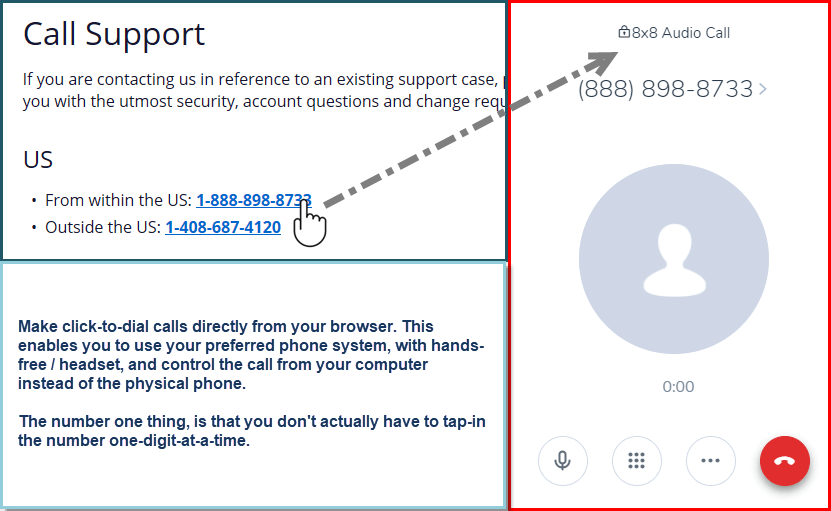
Change Default App for Click-to-Dial from Skype-for-Business to 8×8 We recently switched over to an 8×8 VoIP business phone system, and we use the 8×8 Virtual Office to make and receive calls on our desktop / laptop. However, when I double-clicked on phone numbers that were highlighted as phone call hyperlinks on various website pages, the old Skype-for-Business app was launched. Windows 10 Default Apps So, I went to Windows / Settings / Default Apps / Choose default apps by protocol; and scrolled down to TEL URL:Tel Protocol. It was set to Skype for Business, and I changed it to 8×8 – Virtual Office. Default Apps by Protocol Select the 8×8 – Virtual Office, or other phone dialing app, to be able to launch phone calls by clicking on the phone call hyperlinks in a browser. Click to Dial Now when I do click-to-dial on the phone numbers on websites, that are coded with the appropriate type of hyperlink for phone calls, I get my preferred phone-dialing app.
How to Share Inbox Subfolder in Outlook
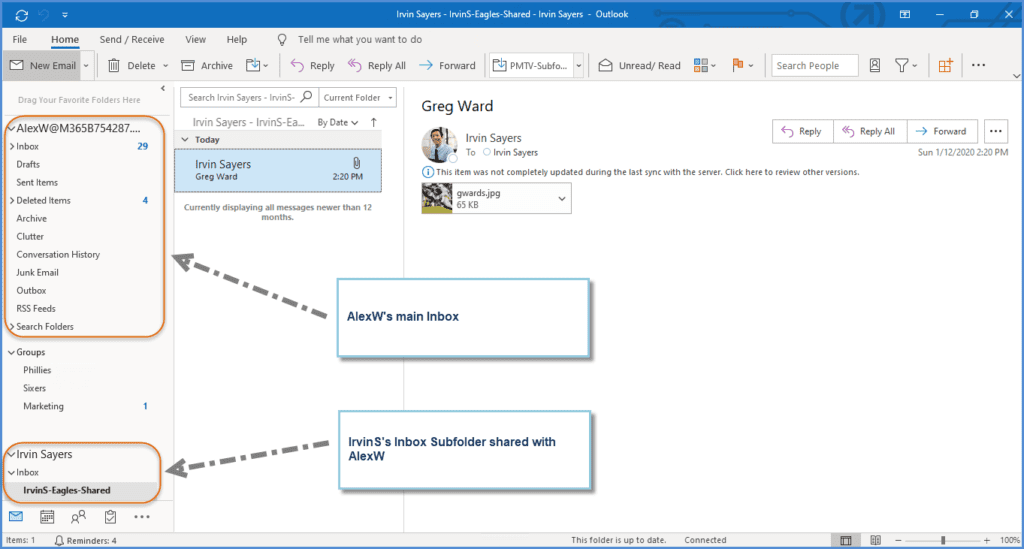
How to share Outlook Inbox subfolders with other users.
Word 2013 Spell Check Not Working
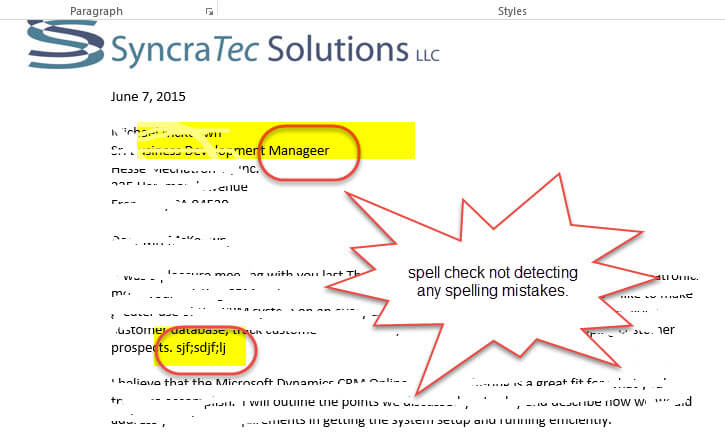
Spell Check Stops Detecting Misspelled Words Even after clearing the “Do not check spelling…” checkbox, Word doesn’t highlight spelling mistakes in document. I had been confounded with Word 2013 spell check not working until I finally found the root cause of the issue. This happened one day while working on a proposal for a prospective client. I began to notice that the Word spell check had seemingly stopped working. A series of quick Google searches return the same answers over-and-over, which didn’t work! The suggested answers were either to first hit Ctrl-A to highlight all the text on your document and then (a) go into File | Options | Proofing | make sure the “Hide spelling errors in this document only” checkbox is cleared (which it was); or (b) Review | Language | Set Proofing Language | and make sure the “Do not check spelling or grammar” checkbox was cleared (which I did). The issue still didn’t go away. Most of the blog articles I reviewed didn’t say this, but it seems to me you need to close your Word document and re-open for either of these changes to take effect. But if the problem is still not fixed, take another look at the key symptom which can be seen in the image to the left; that is the “Do Not Check Spelling…” checkbox is neither checked nor empty: and if you do try and clear it here — it will just revert back, and…you’ll still have the problem with Word 2013 spell check not working. (That’s where I would recommend closing and re-opening your Word document.) If the above steps don’t work, then what I found to fix the problem is by going into the “Styles” area of Word, and drilling down to find where the culprit of this issue resides. Go to Home | Styles area | right-click on the Style (e.g., Normal) and select “Modify…” | then Format and Language; and there you see it: make sure the “Do not check spelling or grammar” checkbox is cleared. Click OK all the way back out, save your document, and then close and re-open Word.